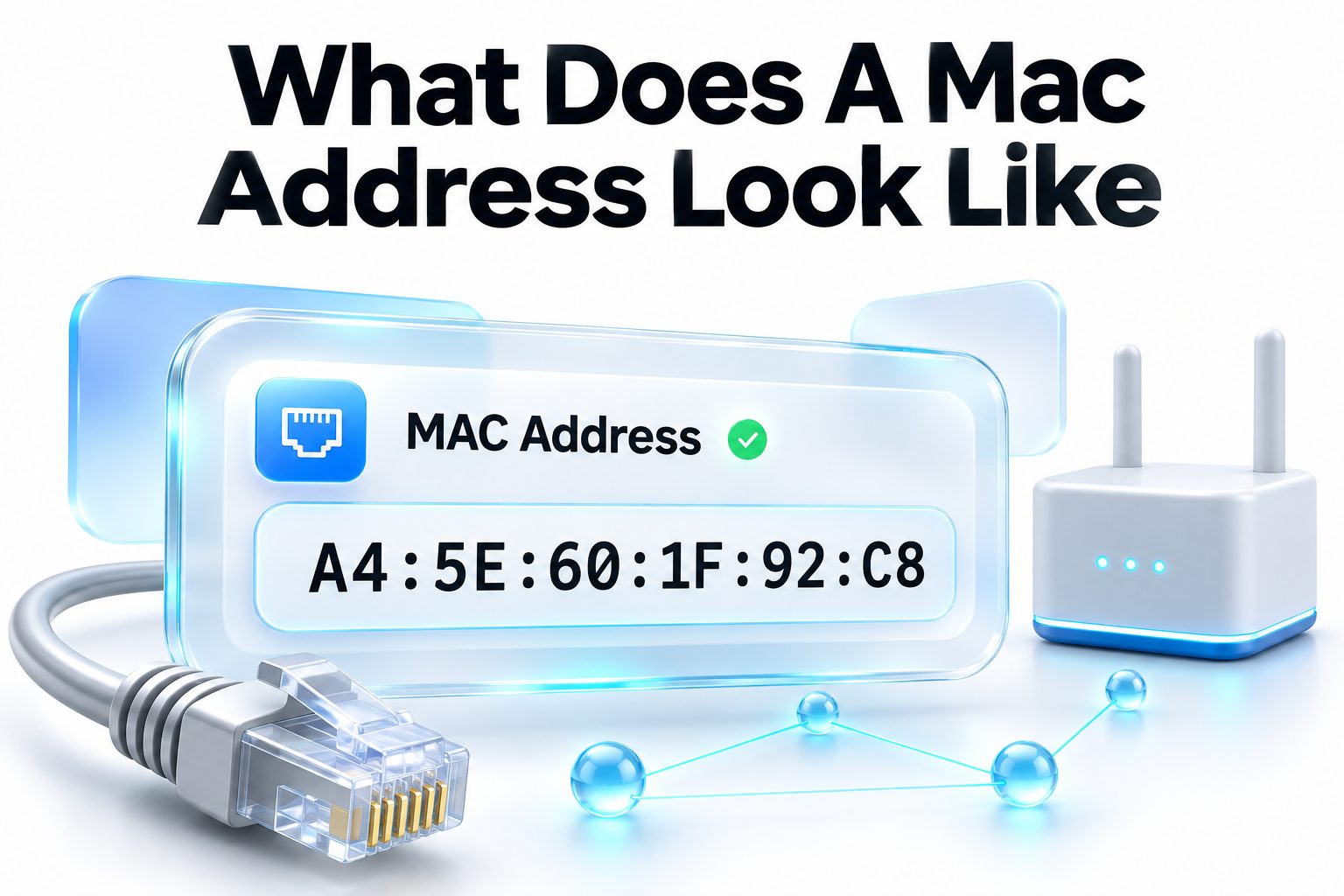
A MAC address is the hardware identifier assigned to a device’s network interface, such as its Wi-Fi adapter or Ethernet port. If you have ever been asked to find one for router setup, network troubleshooting, parental controls, or device registration, you may be wondering what does a mac address look like in practice. The short answer is that it is usually a string of 12 hexadecimal characters, grouped into pairs and separated by colons or hyphens.
For example, a common MAC address looks like `00:1A:2B:3C:4D:5E`. You might also see the same address displayed as `00-1A-2B-3C-4D-5E` or `001A.2B3C.4D5E`. The punctuation can change, but the underlying identifier remains the same.
This article explains how to recognize a MAC address, what its parts mean, where it appears on different devices, and how to avoid confusing it with an IP address. You will also find practical ways to locate it when a network or device setup screen asks for one.
What a MAC Address Looks Like
A standard MAC address contains 48 bits of information. Because computers commonly display those bits in hexadecimal form, the address appears as 12 characters using the numbers 0 through 9 and the letters A through F.
The characters are usually divided into six two-character groups. Each group is called an octet, even though hexadecimal notation makes it look like a pair of characters rather than eight individual binary digits.
Here are several valid examples:
- `A4:5E:60:12:34:56`
- `00-25-96-FF-10-AB`
- `7C:D1:C3:8E:4A:09`
- `001A.2B3C.4D5E`
- `f8:4d:89:21:aa:0c`
Uppercase and lowercase letters do not change the address. For instance, `A4:5E:60:12:34:56` and `a4:5e:60:12:34:56` identify the same network interface.
Common MAC Address Formats
The format depends largely on the operating system, router brand, or networking tool displaying it. Colons are common on Linux, macOS, and many mobile operating systems. Hyphens often appear in Windows tools and hardware documentation.
Cisco-style notation is another format you may encounter in business networking environments. It places a period after every four hexadecimal characters, such as `001A.2B3C.4D5E`.
| Display style | Example | Where it often appears |
|—|—|—|
| Colon-separated | `00:1A:2B:3C:4D:5E` | Linux, macOS, Android, routers |
| Hyphen-separated | `00-1A-2B-3C-4D-5E` | Windows and device labels |
| Period-separated | `001A.2B3C.4D5E` | Cisco networking equipment |
| No separators | `001A2B3C4D5E` | Some setup forms and databases |
When entering an address into a router or registration form, follow the format requested by that screen. If the form rejects one version, try removing separators or switching from colons to hyphens.
The Two Main Parts of a MAC Address
The first half of a traditional MAC address identifies the organization that made the network hardware. The second half helps distinguish one network interface from another within that manufacturer’s assigned range.
This design made it possible for manufacturers to issue unique addresses at scale. It also gives network administrators a clue about the device vendor, although that clue is less dependable now because many devices use privacy features that rotate their Wi-Fi addresses.
The Manufacturer Identifier
The first three pairs, such as `00:1A:2B` in `00:1A:2B:3C:4D:5E`, are known as the Organizationally Unique Identifier, or OUI. It is allocated to an organization that produces network hardware.
Looking up an OUI can sometimes reveal that an unknown device is associated with a particular manufacturer. It should not be treated as definitive proof of the exact product model or owner, especially when randomized addresses are involved.
The Device-Specific Identifier
The final three pairs, such as `3C:4D:5E`, are generally assigned by the manufacturer to identify a particular network interface. Together with the OUI, they historically formed a globally unique hardware address.
A single device can have more than one MAC address. A laptop with Wi-Fi, Ethernet, Bluetooth, and a USB network adapter may show several different addresses because each network-capable interface can have its own identifier.
MAC Address Examples in Real Situations
A router’s connected-device list may show names such as “iPhone,” “Unknown,” or a device manufacturer alongside addresses like `9A:4F:02:77:18:C1`. The address helps you distinguish devices when names are unclear or duplicated.
You may also see a MAC address printed on a label on a router, printer, smart TV, game console, or network camera. Manufacturers often label it as “MAC,” “Wi-Fi MAC,” “LAN MAC,” “Ethernet MAC,” “WLAN MAC,” or “Physical Address.”
A few practical clues can help you spot the correct value:
- A MAC address has 12 hexadecimal characters after punctuation is ignored.
- It uses only the digits 0–9 and letters A–F.
- It is not normally written with decimal-only groups like an IPv4 address.
- Wi-Fi and Ethernet MAC addresses may be listed separately.
- A device may display a “private” or “randomized” Wi-Fi address in addition to its factory address.
MAC Address Versus IP Address
A MAC address and an IP address both help devices communicate, but they operate at different levels of a network. A MAC address identifies a network interface on the local network, while an IP address identifies where a device is currently reachable on an IP network.
Your home router usually assigns a local IP address, such as `192.168.1.25`, to your phone or laptop. That IP address can change after reconnecting, restarting the router, or joining another network. The MAC address is associated with the device interface, though privacy features may cause the Wi-Fi address used on a given network to change.
| Feature | MAC address | IP address |
|—|—|—|
| Typical appearance | `A4:5E:60:12:34:56` | `192.168.1.25` or `2001:db8::1` |
| Main purpose | Identifies a network interface locally | Routes traffic between networks |
| Usually assigned by | Hardware maker or device software | Router, internet provider, or network administrator |
| Can change | Usually fixed, but may be randomized or spoofed | Often changes over time |
| Scope | Local network link | Local network or internet routing |
For a fuller explanation of device addressing, add a link to [Internal Link: MAC Address vs IP Address] where it fits your site structure.
Finding a MAC Address on Windows
Windows typically calls a MAC address a “Physical Address.” The quickest method is to use Command Prompt, although the Settings app also provides it through your network connection details.
Open Command Prompt, type `ipconfig /all`, and press Enter. Look for the network adapter currently in use. The Physical Address entry is the MAC address, displayed with hyphens.
Windows Command Prompt Method
1. Press the Windows key and type `cmd`.
2. Open Command Prompt.
3. Enter `ipconfig /all`.
4. Find the active Wi-Fi or Ethernet adapter.
5. Read the value next to Physical Address.
If several adapters appear, ignore disconnected virtual adapters unless you specifically need one of them. For a wireless connection, choose the adapter labeled Wi-Fi or Wireless LAN. For a cable connection, choose Ethernet.
Windows Settings Method
Open Settings, then select Network & internet. Choose Wi-Fi or Ethernet, select the active connection, and look for Physical address (MAC). The exact menu wording can vary slightly between Windows versions.
This method is useful when you need the address quickly and do not want to interpret command-line output. It also reduces the risk of copying the address for the wrong adapter.
Finding a MAC Address on macOS
On a Mac, the Wi-Fi MAC address is often called the Wi-Fi Address. Apple devices may also use a private Wi-Fi address for individual networks, so the address shown to your router can differ from the device’s hardware address.
Open the Apple menu, choose System Settings, select Wi-Fi, and open Details next to the connected network. Look for Wi-Fi address. In some versions of macOS, you can also find the hardware address through System Information under Network.
For Ethernet, open System Settings, select Network, choose the Ethernet connection, and view its details. A USB-C Ethernet adapter will generally have its own MAC address rather than sharing the Mac’s Wi-Fi address.
Finding a MAC Address on Phones and Tablets
Android and iPhone or iPad menus display the Wi-Fi MAC address in different locations. Both platforms may use private addresses by default to reduce tracking across Wi-Fi networks.
On Android, open Settings and search for “MAC address” if the menu layout is unfamiliar. It is commonly found under About phone, Status information, Wi-Fi details, or Hardware information, depending on the manufacturer.
On an iPhone or iPad, open Settings, select General, then About, and locate Wi-Fi Address. To see the private address used for a particular Wi-Fi network, open Settings, select Wi-Fi, tap the information icon next to the network, and review the Private Wi-Fi Address setting.
Private and Randomized MAC Addresses
Modern phones, tablets, and many computers can use a randomized MAC address when connecting to Wi-Fi. Instead of broadcasting the same hardware identifier everywhere, the device presents a private address that is often unique to that particular network.
This is a privacy feature, not an error. It makes it harder for Wi-Fi networks and nearby tracking systems to recognize the same device across different locations.
When Private Addresses Cause Confusion
Private MAC addresses can complicate router-based rules. For example, a parent may allow a child’s tablet onto Wi-Fi by adding its MAC address to an access list, only to find that the router shows a different address from the one listed in the device’s general information.
The fix is usually to locate the private address assigned to that specific Wi-Fi network. If you need a stable identifier for access control or a reserved IP address, you may be able to disable private addressing for that network only.
When to Leave Private Addressing Enabled
For everyday home, café, hotel, airport, and public Wi-Fi use, leaving private addressing enabled is generally sensible. It limits unnecessary exposure of a long-term device identifier.
Turn it off only when a trusted network genuinely requires the hardware MAC address for registration, filtering, troubleshooting, or a static DHCP reservation. Check your organization’s network policy before changing the setting on a work or school device.
Locating MAC Addresses on Network Devices
Printers, smart televisions, game consoles, cameras, and streaming devices often display their MAC address in a network settings menu. If the device cannot connect to the network yet, check the physical label on its back, underside, packaging, or setup documentation.
The label may list multiple entries. “LAN MAC” refers to the wired Ethernet interface, while “WLAN MAC” or “Wi-Fi MAC” refers to the wireless interface. Use the one that matches the way the device connects.
A router’s administration page can also help identify devices already connected to it. Look for a section named Attached Devices, Client List, Device List, DHCP Clients, or Connected Devices. You can often see the device name, current IP address, signal strength, and MAC address together.
For more help identifying unfamiliar devices, a useful related resource is [Internal Link: Find Devices Connected to Wi-Fi].
Common MAC Address Mistakes
The most common mistake is copying the address of the wrong network adapter. A desktop PC may show a wired Ethernet address, a Wi-Fi address, VPN adapters, Bluetooth interfaces, and virtual machine adapters. A router rule applied to one address will not affect traffic from another.
Another frequent issue is confusing a serial number with a MAC address. Serial numbers can contain a wider range of letters and may have different lengths. MAC addresses are recognizable because they contain exactly 12 hexadecimal characters in the usual 48-bit form.
Keep these checks in mind before submitting an address:
1. Confirm the interface type: Wi-Fi or Ethernet.
2. Check that there are 12 hexadecimal characters.
3. Copy the whole address, including every pair.
4. Use the requested punctuation format.
5. Verify whether the device is using a private Wi-Fi address.
6. Avoid sharing the address publicly unless there is a clear reason.
MAC Address Filtering and Its Limits
MAC filtering lets a router allow or block devices based on their listed MAC addresses. It can be convenient for basic household administration, such as recognizing known devices or preventing an accidental connection.
It is not strong security on its own. MAC addresses can be observed on a local wireless network and can be changed, or spoofed, by someone with sufficient technical knowledge. A secure Wi-Fi password and modern encryption remain far more important.
Use MAC filtering as a management tool, not as your only line of defense. Keep WPA2 or WPA3 enabled, use a long unique Wi-Fi password, update the router firmware, and remove old devices from the network list when they are no longer in use.
Troubleshooting When a MAC Address Is Not Working
If a router says a MAC address is invalid, compare the number of characters against a known format. It may expect colons, hyphens, periods, or no punctuation at all. Avoid adding spaces before or after the copied value.
When a reservation or access rule does not work, verify that the device is connected through the expected interface. A laptop switching from Ethernet to Wi-Fi changes the address the router sees. A phone using a private Wi-Fi address may do the same.
The Device Does Not Appear in the Router List
First, make sure the device is actually connected to that router’s network. Guest networks, mesh nodes, extenders, and separate 2.4 GHz or 5 GHz network names can make device lists harder to interpret.
Restarting the connection may refresh the list. Turn Wi-Fi off and on, reconnect the device, then reload the router’s client list. Use the device’s current IP address or hostname as another clue if several unknown MAC addresses appear.
The Address Changes Unexpectedly
A changing address usually points to MAC randomization, a different adapter, or a replacement network interface. Review the network privacy setting on the device and confirm that you are viewing the MAC address for the exact network in question.
If you need a device to retain the same local IP address, set a DHCP reservation using the address that the router currently sees. Do not reserve an address against a factory Wi-Fi MAC if the device connects using a private one.
Conclusion
A MAC address is easy to recognize once you know its pattern: 12 hexadecimal characters, commonly grouped into six pairs. It may use colons, hyphens, periods, or no punctuation, but the same sequence identifies the same network interface. Look for labels such as Physical Address, Wi-Fi Address, WLAN MAC, or LAN MAC when checking a computer or connected device.
The practical detail that trips up many people is that a device can have several addresses. Wi-Fi, Ethernet, Bluetooth, and USB adapters can each use their own value. Phones and newer computers may also use private addresses for individual Wi-Fi networks, which can make a router display an unfamiliar identifier.
When someone asks what does a mac address look like, the best answer is a value such as `00:1A:2B:3C:4D:5E`, paired with the reminder to choose the address for the network connection actually in use. That simple check prevents most setup and troubleshooting mistakes.
Frequently Asked Questions
Can a MAC address contain letters beyond F?
No. A standard MAC address uses hexadecimal characters only, so it contains digits 0 through 9 and letters A through F. Letters such as G, R, or Z indicate that you are likely looking at another identifier.
Is a MAC address the same as a serial number?
No. A MAC address identifies a network interface, while a serial number identifies a device or product unit. Both may appear on hardware labels, but serial numbers use manufacturer-specific formats and are often longer.
Why does my phone show more than one MAC address?
Your phone can show a factory Wi-Fi address and a private address used for a specific wireless network. It may also have separate Bluetooth and other network interface identifiers, each serving a different connection purpose.
Can I change a MAC address?
Yes, many operating systems and network adapters allow MAC spoofing, which temporarily changes the address presented to a network. The factory hardware address usually remains stored on the device and can often still be viewed.
Should I share my MAC address publicly?
Usually, no. A MAC address is not as sensitive as a password, but it can help identify a device on a local network. Share it only with trusted network administrators, support teams, or services that require it.