A Windows 11 PC can show several network adapters at once, so finding the right MAC address is less about a hidden setting and more about identifying the connection you actually use. The quickest route is through Settings, but Command Prompt, PowerShell, and the Control Panel each provide useful alternatives when you need extra details or cannot access the usual menu.
This article explains how to find mac address windows 11 on Wi-Fi, Ethernet, VPN, and virtual adapters. You will learn where Windows labels the address as a “physical address,” how to avoid copying the MAC address from the wrong adapter, and what to do when a network uses a randomized address. You will also see practical methods for checking the address before setting up router access rules, registering a device on a network, or troubleshooting a connection.
What a MAC Address Does on Windows 11
A MAC address is a hardware identifier assigned to a network interface. It is usually written as six pairs of letters and numbers, such as `A4-B1-C2-D3-E4-F5` or `A4:B1:C2:D3:E4:F5`. Wi-Fi and Ethernet adapters each have their own address.
Local networks use MAC addresses to recognize devices at the data-link level. Your router may show the address in its connected-device list, and a workplace, school, or hotel network may require it when registering a computer for access.
A MAC address is not the same as your public IP address. Your public IP identifies the network connection on the internet, while a MAC address is mainly used within your local network. It normally is not visible to websites you visit.
Choose the Correct Network Adapter First
Before copying an address, confirm which adapter carries your active connection. A laptop might have Wi-Fi, Ethernet, Bluetooth, VPN software, Hyper-V, and virtual machine adapters, all with different physical addresses.
Open Settings, select Network & internet, then look for the connection marked Connected. If you are browsing through wireless internet, use the Wi-Fi adapter’s address. If a cable is plugged in and active, use the Ethernet adapter’s address instead.
Key checks before you copy an address:
- Use the Wi-Fi MAC address for wireless network registration.
- Use the Ethernet MAC address for a wired connection or docking station.
- Ignore adapters labeled disconnected unless a network administrator specifically asks for one.
- Treat VPN, Bluetooth, and virtual adapters as separate interfaces.
- Check whether Windows is using a randomized hardware address for that Wi-Fi network.
Find the MAC Address in Windows 11 Settings
Settings is the most straightforward method because it presents adapter details without requiring commands. It works well when you only need the address for the currently connected Wi-Fi or Ethernet network.
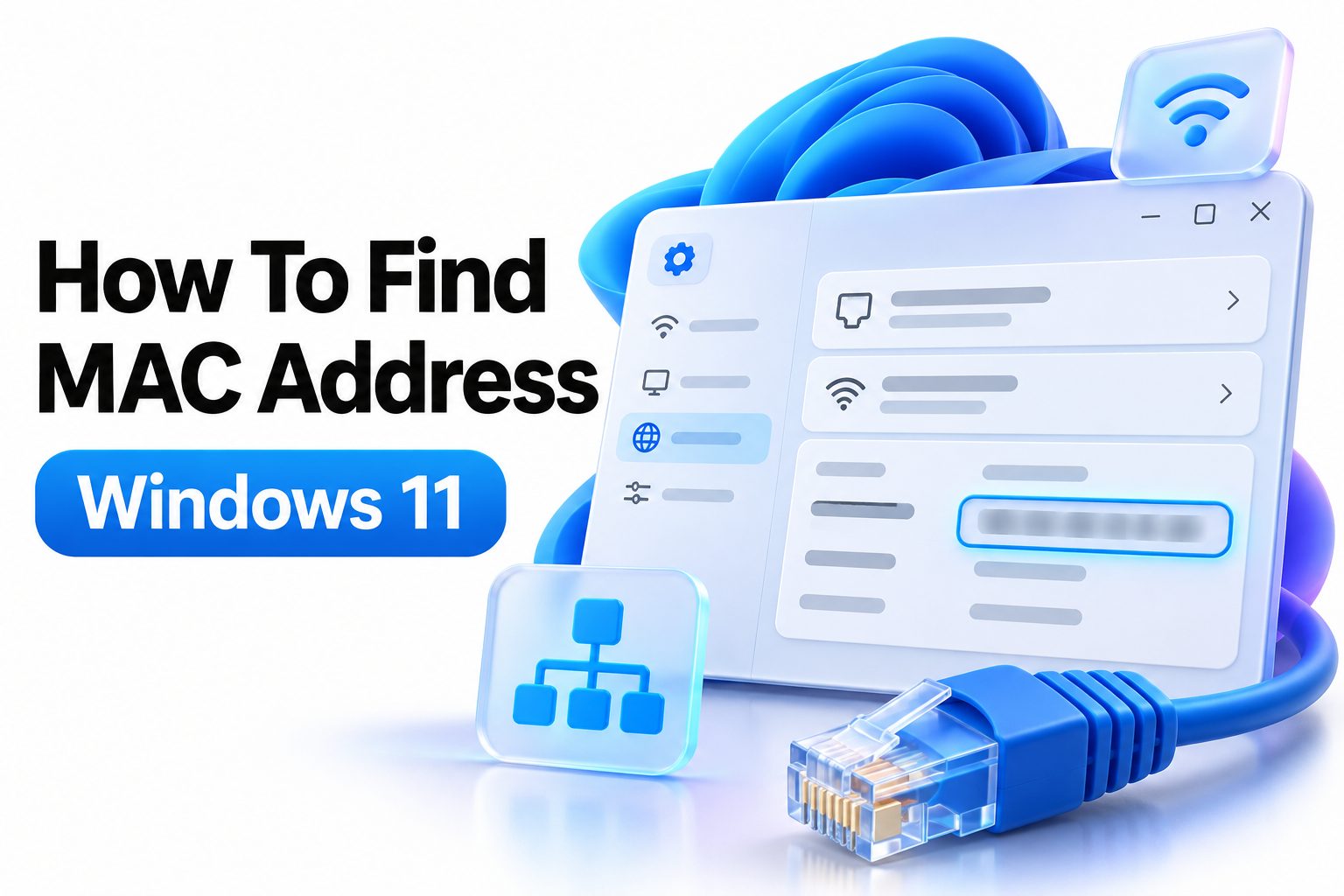
For a Wi-Fi connection, open Settings from the Start menu, choose Network & internet, and select Wi-Fi. Open Hardware properties and locate the line labeled Physical address (MAC). Copy the value exactly as shown.
For a wired connection, go to Settings > Network & internet > Ethernet, then select Hardware properties. The Physical address (MAC) field is the Ethernet adapter’s address. This view can also show the connection’s IP assignment and DNS details.
Settings steps for active Wi-Fi
1. Press Windows + I to open Settings.
2. Select Network & internet.
3. Click Wi-Fi.
4. Open Hardware properties.
5. Find Physical address (MAC) and copy the displayed value.
Settings steps for active Ethernet
1. Press Windows + I and select Network & internet.
2. Click Ethernet.
3. Choose Hardware properties.
4. Locate Physical address (MAC).
5. Use that address for wired-network registration or router configuration.
Use Command Prompt for a Full Adapter List
Command Prompt is often the better choice when you need to compare several adapters at once. It displays adapter names, status, connection details, and physical addresses in one place, which makes it easier to spot an unexpected active connection.
Press Windows + R, type `cmd`, and press Enter. Then run `ipconfig /all`. Under each adapter section, look for Physical Address. The section title identifies the adapter, such as “Wireless LAN adapter Wi-Fi” or “Ethernet adapter Ethernet.”
If the output is lengthy, use `getmac /v` instead. This command gives a more compact list of MAC addresses and adapter names. It can be useful on managed PCs where several virtual network interfaces appear.
| Command | Best use | What to look for |
|—|—|—|
| `ipconfig /all` | Detailed network troubleshooting | Physical Address under the active adapter |
| `getmac` | Fast list of MAC addresses | Physical address and transport name |
| `getmac /v` | Identifying several adapters | Connection name, adapter name, and MAC address |
| `netsh wlan show interfaces` | Confirming active Wi-Fi details | Physical address and current SSID |
Check the Address With PowerShell
PowerShell provides clean, filterable results and is especially practical when you manage more than one adapter. It is included with Windows 11 and does not require downloading a separate tool.
Right-click the Start button and choose Terminal or search for PowerShell. Run `Get-NetAdapter`, then read the MacAddress, Name, and Status columns. An adapter with the status Up is normally the one currently in use.
To show only active adapters, run `Get-NetAdapter | Where-Object Status -eq ‘Up’`. This shortens the output and helps prevent copying the MAC address for a disconnected Ethernet port or unused virtual adapter.
Useful PowerShell commands
`Get-NetAdapter`
Shows the name, status, link speed, and MAC address for installed network adapters.
`Get-NetAdapter | Where-Object Status -eq
Shows only currently active adapters, which is useful when both Wi-Fi and Ethernet options appear.
`Get-NetAdapter -Name
Shows details for a specifically named adapter. Replace `Wi-Fi` with the adapter name shown on your computer.
For more network-management help, a related [Internal Link: Windows 11 network settings guide] can help readers locate IP, DNS, proxy, and sharing controls in the same area of Settings.
Find a MAC Address in Control Panel
Control Panel remains available in Windows 11 and is a good fallback when you prefer the traditional network connection view. It is also helpful for seeing the state of each adapter before opening its details.
Search for Control Panel, then select Network and Internet > Network and Sharing Center > Change adapter settings. Right-click the adapter you need, choose Status, then select Details. The address appears beside Physical Address.
This approach takes a few more clicks than Settings, but it is useful when an adapter is disabled, renamed, or part of an older network setup. You can quickly distinguish a Wi-Fi adapter from a USB Ethernet adapter by its connection icon and name.
Quick comparison of the main methods:
- Settings: Best for a quick check of the active Wi-Fi or Ethernet connection.
- Command Prompt: Best for detailed diagnostics and a complete adapter inventory.
- PowerShell: Best for filtering active adapters and repeatable checks.
- Control Panel: Best for users who prefer classic connection management.
- Router device list: Best for confirming which address the router currently sees.
Check Wi-Fi Random Hardware Addresses
Windows 11 can use a randomized MAC address for Wi-Fi to improve privacy. When this feature is enabled, the MAC address your router sees may differ from the permanent hardware address shown elsewhere. This matters when a network uses MAC filtering or device registration.
Open Settings > Network & internet > Wi-Fi and look for Random hardware addresses. Windows may let you enable the setting for all Wi-Fi networks or manage it for an individual saved network, depending on the version and configuration of Windows.
For a trusted network that requires a registered device address, use a consistent address. Turning random hardware addresses off for that specific network can prevent repeated registration issues. On public Wi-Fi, leaving the feature enabled can reduce tracking across networks.
Do not assume this setting changes Ethernet behavior. Randomized addresses are primarily a Wi-Fi privacy feature, and wired Ethernet adapters usually continue using their normal physical address.
Confirm the Address Through Your Router
Your router’s administration page can confirm the MAC address that is actively connected to your home or office network. This is useful when the PC has several adapters, or when you want to match a device to an IP address, hostname, or DHCP reservation.
Sign in to the router, then open a page labeled Connected devices, Client list, Device list, or DHCP clients. Find your Windows 11 computer by its device name or current IP address. The router should display its MAC address alongside those details.
This method only shows the address currently visible to the router. If you switch from Wi-Fi to Ethernet, the router will see a different MAC address. A Wi-Fi randomized address may also appear instead of the adapter’s factory-assigned address.
Common matching clues:
- Your Windows device name, often shown under Settings > System > About
- The current local IP address, such as `192.168.1.25`
- The connection type, listed as Wi-Fi, wireless, LAN, or Ethernet
- The time the device connected or renewed its network lease
- A recognizable manufacturer label, though this is not always accurate for virtual adapters
Use the MAC Address for Network Setup
Most people need a MAC address to register a device, create a DHCP reservation, apply parental controls, or troubleshoot access to a local network. In each case, enter the address exactly as requested by the network tool.
Some routers accept hyphens, colons, or no separators. If a form rejects the address copied from Windows, remove the separators or replace hyphens with colons. The underlying twelve hexadecimal characters remain the same.
MAC filtering can limit connections to addresses on an approved list, but it should not be treated as strong security. MAC addresses can be imitated, and a secure Wi-Fi password with WPA2 or WPA3 protection is far more important for protecting a network.
If you are configuring a fixed local address, reserve it through the router’s DHCP settings rather than manually setting a static IP on the PC unless you know the network’s address plan. This usually avoids conflicts and keeps device management simpler.
Fix Problems When the MAC Address Is Missing
If Settings does not show a physical address, first confirm that the adapter is enabled. Go to Settings > Network & internet > Advanced network settings and check whether Wi-Fi or Ethernet is disabled. Enable it, wait briefly, and reopen the adapter details.
A missing or unusual MAC address can also point to a driver issue. Open Device Manager, expand Network adapters, and check for warning symbols. Updating the adapter driver from the computer manufacturer or network-adapter manufacturer may restore normal operation.
Virtual private network software, virtual machine platforms, and USB docks can add extra adapters. They are not necessarily a problem, but they can make the list confusing. Use the adapter status, connection type, and IP details to identify the interface you need.
Common mistakes to avoid
- Registering the Ethernet MAC address when the computer connects through Wi-Fi.
- Copying an address from a disconnected or virtual adapter.
- Forgetting that random Wi-Fi hardware addresses can change the visible value.
- Entering the router’s MAC address instead of the PC’s address.
- Assuming a MAC address proves a device is secure or uniquely trustworthy.
- Changing advanced adapter values without recording the original configuration.
Know When MAC Addresses Can Change
A network adapter usually has a factory MAC address, often called the burned-in address. Still, the address that a network sees can change in certain situations. Wi-Fi randomization is the most common example for Windows 11 users.
Some adapter drivers also let administrators override the MAC address through advanced settings. This may be needed in specialized business or testing environments, but it can cause connection conflicts when two devices use the same address on one network.
Docking stations and USB-to-Ethernet adapters have their own MAC addresses. Connecting a laptop through a dock does not make the dock use the laptop’s built-in Ethernet address; the network sees the dock’s adapter instead. Keep this in mind when registering a work device.
For broader connection troubleshooting, [Internal Link: fix Wi-Fi not connecting in Windows 11] is a useful next step when the correct MAC address is present but the PC still cannot join a network.
Protect MAC Address Information Sensibly
A MAC address is not as sensitive as a password, but it is still an identifier tied to a device interface. Avoid posting it publicly alongside your home network name, router login details, serial number, or full IP configuration.
When you send a MAC address to a network administrator, use the address from the connection you intend to use and state whether it is Wi-Fi or Ethernet. That small detail avoids a common delay in device-registration requests.
Do not share a MAC address in screenshots that also expose your public IP address, Wi-Fi password, router administration URL, or workplace network information. Crop screenshots before sending them if possible.
Keep a short record of the Wi-Fi, Ethernet, and dock addresses for devices you manage. Labeling each value clearly can save time later when configuring a new router, replacing a dock, or moving between home and office networks.
Conclusion
Finding a device’s physical address in Windows 11 is usually quick once you know which adapter is active. Settings offers the simplest route for everyday Wi-Fi and Ethernet checks, while Command Prompt and PowerShell make it easier to compare multiple connections. The classic Control Panel view remains a useful backup when you need to inspect adapter status.
The key is matching the address to the way the PC is connected at that moment. Wi-Fi, Ethernet, USB docks, virtual adapters, and VPN tools can all appear separately, and Wi-Fi privacy settings may display a randomized value to the network. Check the active adapter, copy the physical address carefully, and confirm it in your router when a network setup depends on it.
Once you know how to find mac address windows 11, tasks such as device registration, DHCP reservations, and router troubleshooting become much more straightforward. Keep track of which address belongs to each connection type, especially if you frequently switch between wired and wireless networking.
Frequently Asked Questions
Where is the MAC address in Windows 11 settings?
Open Settings, select Network & internet, choose Wi-Fi or Ethernet, and open Hardware properties. The value beside Physical address (MAC) is the address for that active network adapter.
Is the Wi-Fi MAC address different from Ethernet?
Yes. Wi-Fi and Ethernet are separate network adapters, so each normally has its own MAC address. Use the Wi-Fi value for wireless access and the Ethernet value for cable-based network registration.
Why does my router show a different MAC address?
Windows may use a random hardware address for Wi-Fi privacy. Check the Random hardware addresses setting for that network. A docking station or USB adapter can also present a different address than the built-in adapter.
Can I find my MAC address without internet access?
Yes. You do not need an internet connection. Open Settings, run `ipconfig /all` in Command Prompt, or use `Get-NetAdapter` in PowerShell to view locally installed network adapter addresses.
Does restarting Windows change the MAC address?
Usually no. A hardware adapter keeps the same factory address after restarting. The visible Wi-Fi address can differ when random hardware addresses are enabled, especially when connecting to different wireless networks.