A MAC address is the hardware identifier assigned to a network adapter, such as the Wi-Fi card or Ethernet port in your phone, computer, router, printer, or smart TV. You may need to find it when connecting a device to a secure network, setting up parental controls, reserving an IP address on a router, or troubleshooting a connection issue. The good news is that you usually do not need extra software to do it.
This guide explains how to get mac address information on Windows, macOS, iPhone, Android, Linux, and common network devices. You will also learn the difference between Wi-Fi and Ethernet addresses, where to find another device’s address from your router, and what to do when the value shown does not match what your network expects. Most methods take less than a minute once you know where to look.
What a MAC Address Is
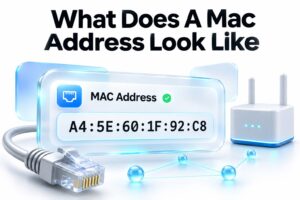
A MAC address, short for Media Access Control address, identifies a specific network interface on a local network. It is usually written as six pairs of letters and numbers, such as 00:1A:2B:3C:4D:5E. Some systems use hyphens instead of colons, but the underlying address is the same.
A device can have more than one MAC address. A laptop with both Wi-Fi and Ethernet has separate addresses for each connection type. Bluetooth adapters, virtual machines, docking stations, and USB network adapters may also have their own hardware addresses.
Why You Might Need the MAC Address
Network administrators use MAC addresses to recognize devices on a local network. They may allow only approved devices onto Wi-Fi, assign a fixed local IP address to a printer, or investigate which device is using bandwidth. At home, you may see it when configuring router access controls.
It is also useful during troubleshooting. If your router lists an unfamiliar device, comparing its MAC address with those on your own equipment can help identify it. Just remember that a MAC address is mainly useful inside a local network; it is not a public internet identity.
Finding the MAC Address on Windows
Windows offers several reliable ways to view a physical address. The Settings app is easiest for most people, while Command Prompt gives you a faster view of every adapter, including Ethernet, Wi-Fi, and virtual connections.
Before copying an address, check which network adapter is currently active. Looking at the Ethernet address while your computer is connected over Wi-Fi can cause confusion, especially when a network administrator has asked for the MAC address of the device currently joining the network.
Using Windows Settings
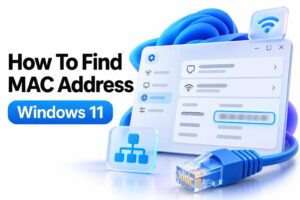
Open Settings, then select Network & internet. Choose Wi-Fi if you are using wireless internet, or Ethernet if your computer uses a cable. Select Hardware properties and look for Physical address (MAC).
The entry displayed there is the address for that specific connection. If your PC has both Wi-Fi and Ethernet, switch between those network sections to view each address. This route is convenient because it avoids sorting through inactive adapters.
Using Command Prompt
Open the Start menu, type Command Prompt, and open it.
ipconfig /all
Look for the active Wi-Fi or Ethernet adapter, then find the line named Physical Address. Windows commonly displays the address with hyphens, such as 00-1A-2B-3C-4D-5E.
Quick Windows checks
- Confirm whether you are connected through Wi-Fi or Ethernet before copying the value.
- Ignore disconnected adapters unless you specifically need that adapter’s address.
- Look for “Physical Address,” not “IPv4 Address,” which is a different identifier.
- If several adapters appear, focus on the one that says Media State is connected.
- Copy the address exactly, including every pair of characters.
Finding the MAC Address on a Mac
On a Mac, you can find the address through System Settings or with a Terminal command. The settings method is typically best for routine use because it clearly separates Wi-Fi from wired network connections.
Recent macOS versions may label the address as a Wi-Fi Address rather than a MAC address. It is the same kind of identifier, although Apple may use a private address for certain Wi-Fi networks, which can make the displayed value different from the hardware address.
Using System Settings
Select the Apple menu, open System Settings, and choose Network. Click Wi-Fi, then select Details next to the connected network. Scroll through the available information to find the Wi-Fi address.
For a wired connection, choose Ethernet in the Network section, open Details, and review the hardware information. If you are using a USB-C hub or docking station, the Ethernet adapter in that accessory may have its own address.
Using Terminal
Open Terminal from Applications > Utilities and enter:
networksetup -getmacaddress Wi-Fi
For a wired connection, replace Wi-Fi with Ethernet if that is the name shown in Network settings. Terminal reports the address alongside the interface name, which helps confirm you have checked the right network connection.
Finding the MAC Address on iPhone and iPad
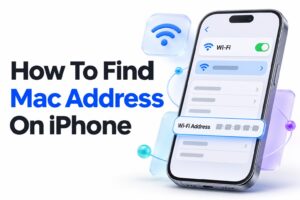
On an iPhone or iPad, open Settings, select General, then tap About. Look for Wi-Fi Address. This is the device’s standard Wi-Fi MAC address and is the value many network setup forms request.
For a particular Wi-Fi network, iOS can use a Private Wi-Fi Address. Go to Settings, tap Wi-Fi, select the information button beside the network, and check Private Wi-Fi Address. That value may be the one your router sees instead.
Private Address and Network Access
Private Wi-Fi Address is designed to reduce tracking across different wireless networks. It can be helpful for privacy, but it may complicate networks that approve devices by MAC address or use MAC-based reservations.
If a school, workplace, hotel, or home router requires a specific approved address, provide the address used for that network. In some cases, turning off Private Wi-Fi Address for that single network is necessary, though doing so reduces privacy on that connection.
Finding the MAC Address on Android
Android menus vary by manufacturer and version, but the address is usually found under About phone, Status information, or Wi-Fi details. Search within the Settings app for “MAC address” if the menu layout is unfamiliar.
Many Android phones use randomized MAC addresses for Wi-Fi networks by default. As with Apple’s private Wi-Fi addresses, the router may see a randomized network-specific address instead of the phone’s permanent device address.
Common Android paths
1. Open Settings and select About phone or About device.
2. Tap Status, Status information, or Hardware information.
3. Find Wi-Fi MAC address to view the hardware value.
4. To check the address currently used on one network, open Wi-Fi settings.
5. Tap the connected network and review its Privacy, MAC address type, or device details.
On some Samsung devices, you can open Settings, choose About phone, select Status information, and find Wi-Fi MAC address. Google Pixel devices often show it under Settings > About phone > Device details.
Finding the MAC Address on Linux
Linux distributions provide multiple ways to identify a network interface address. Desktop network settings are convenient, but terminal commands are often quicker and work across most distributions, including Ubuntu, Fedora, Debian, and Linux Mint.
Use the `ip` command first because it is widely available and gives a clear view of interfaces. The command output may include loopback, Docker, VPN, or virtual adapters, so identify the interface that is actually connected.
Using the IP Command
Open a terminal and run:
ip link
Find the active interface, commonly named wlan0, wlp, eth0, or enp. The address appears after `link/ether`. For example, a line might show `link/ether 00:1a:2b:3c:4d:5e`.
You can also target a specific interface. For example, use `ip link show wlan0` when your wireless adapter is named wlan0. Replace that name with the interface shown on your own system.
Using Network Settings
Most Linux desktop environments show the address inside network settings. Select the connected Wi-Fi or Ethernet network, open its details, and look for Hardware Address, Device Address, or MAC Address.
This is often easier than reading terminal output if you use a graphical desktop. It also helps distinguish a Wi-Fi adapter from a wired adapter when both are enabled on the same computer.
MAC address format at a glance
| Device or system | Common label | Typical location |
| — | — | — |
| Windows | Physical Address | Network Settings or `ipconfig /all` |
| macOS | Wi-Fi Address | Network settings |
| iPhone and iPad | Wi-Fi Address | Settings > General > About |
| Android | Wi-Fi MAC Address | About phone or Wi-Fi details |
| Linux | link/ether | `ip link` or network settings |
| Router | MAC Address or BSSID | Router administration page |
Finding a Device Address Through Your Router
Your router’s administration page can show the MAC addresses of devices currently connected to your home network. This is especially helpful for printers, smart speakers, televisions, cameras, and other devices with limited menus.
Sign in to the router through its web interface or companion app. Look for Connected Devices, Client List, Device List, DHCP Clients, or a similar section. Each listed device generally includes a name, local IP address, connection type, and MAC address.
Matching the Right Device
Device names are not always reliable. A smart plug may appear under a manufacturer name, while a phone could use a generic hostname. Compare the listed address with the MAC address shown in the device’s own settings whenever possible.
You can also temporarily disconnect the device, refresh the router’s client list, then reconnect it. The newly appearing entry is usually the correct one. This practical approach is useful when several unnamed devices are listed.
For more help organizing devices and reservations, see [Internal Link: how to assign a static IP address].
Finding MAC Addresses on Printers and Smart Devices
Printers commonly display their MAC address on the network configuration page, touchscreen settings, or a printed status report. Look under Network, Wireless, TCP/IP, or Wi-Fi setup. Many models let you print the report directly from the control panel.
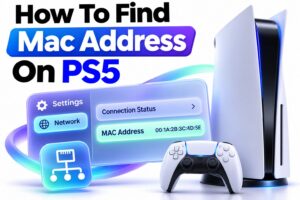
Smart TVs, game consoles, streaming devices, and smart home products usually list the address in their network settings. It may be called Wired MAC Address, Wireless MAC Address, Ethernet Address, or Wi-Fi Address, depending on the device.
Device-Specific Tips
A game console normally lists separate wired and wireless addresses, so use the one that matches how it connects. Streaming boxes can do the same. If the device is on Wi-Fi now but will later be connected by cable, its router entry will change.
Some devices place the MAC address on a physical label, usually on the underside or back. That label can be useful before setup, but it may not reflect a randomized wireless address if the device supports privacy features.
Common Mistakes When Checking a MAC Address
The most common mistake is copying the address for the wrong adapter. A laptop can show Wi-Fi, Ethernet, Bluetooth, VPN, virtual machine, and inactive network interfaces in one list. Only the active or requested adapter address will work for the intended task.
Another frequent issue is confusing a MAC address with an IP address. A local IP address usually looks like 192.168.1.25 or 10.0.0.15, while a MAC address uses six groups of hexadecimal characters. They serve different purposes and are not interchangeable.
Avoid these problems
- Do not submit a Bluetooth address when a Wi-Fi address is required.
- Do not use an address printed on an old accessory if the current adapter has changed.
- Do not assume a router sees your permanent address when MAC randomization is enabled.
- Do not remove colons or hyphens unless the network form specifically requests a continuous string.
- Do not share device addresses publicly unless there is a clear reason to do so.
MAC Randomization and Privacy Features
Modern phones, tablets, and some computers can generate a private or randomized MAC address for a Wi-Fi network. This makes it harder for businesses and public hotspots to track the same device across separate locations.
The feature can create legitimate setup issues. If your router has a reserved IP address or access rule tied to a permanent MAC address, the device may appear as new after switching to a private address. The solution is to update the router rule or use a consistent address for that trusted network.
When to Use a Private Address
Keep private addressing enabled on public Wi-Fi whenever possible. It offers a sensible layer of privacy without affecting normal browsing. There is rarely a reason to disable it simply because a network has internet access.
For a home, office, or school network that depends on address-based approvals, check the network’s instructions first. You may need to register the randomized address currently assigned to that network rather than the hardware address shown in general device settings.
Troubleshooting When the Address Does Not Work
If a network rejects a MAC address you supplied, first confirm the connection type. A device registered for Wi-Fi will not be recognized if it later connects through Ethernet, because those interfaces use different addresses.
Next, check for privacy or randomization settings. On phones and recent operating systems, the router may see a private address instead of the hardware address you found under general device information. Registering the router-visible address often fixes the issue.
If the issue involves a home router, remove any outdated reservation or access-control entry before adding the corrected address. Then restart the connection or reconnect the device to Wi-Fi. For persistent connection issues, [Internal Link: common Wi-Fi connection problems] can help narrow down whether the problem is address-related or caused by signal, password, or router settings.
Conclusion
Finding a MAC address is usually a quick task once you know which network adapter matters. Windows, macOS, iPhone, Android, and Linux all provide built-in places to view it, while routers can reveal the addresses of connected smart devices, printers, and media equipment.
The key is to match the address to the connection you actually use. A Wi-Fi address is different from an Ethernet address, and modern privacy settings may show a network-specific randomized value instead of a permanent hardware identifier. That distinction explains many failed network registrations and router reservation problems.
When you need to know how to get mac address details, start with the device’s network settings, then use its command-line tools or your router’s client list if necessary. Copy the value carefully, keep it private when possible, and verify the active connection before giving it to a network administrator or adding it to your router.
Frequently Asked Questions
Is a MAC address the same as an IP address?
No. A MAC address identifies a network interface on a local network, while an IP address identifies its network location. Your IP address can change regularly; the hardware address is typically more stable, except when privacy randomization is active.
Can one device have multiple MAC addresses?
Yes. Devices with Wi-Fi, Ethernet, Bluetooth, or virtual network adapters can have several addresses. Use the Wi-Fi address for wireless setup and the Ethernet address for a wired connection unless the network administrator specifies otherwise.
Where is the MAC address on a router?
It is usually printed on a label beneath or behind the router and appears in its administration settings. The router also has a separate client list that displays MAC addresses for connected phones, computers, and smart devices.
Why does my phone show a different MAC address on Wi-Fi?
Your phone may use a private or randomized MAC address for that Wi-Fi network. This privacy feature prevents easier tracking across networks. Check the connected network’s settings to find the address your router currently sees.
Can I change a MAC address?
Sometimes. Computers can often use software to temporarily change or spoof an adapter address, but phones and smart devices may not allow it. Only change it when you have a legitimate network-management reason and permission to do so.