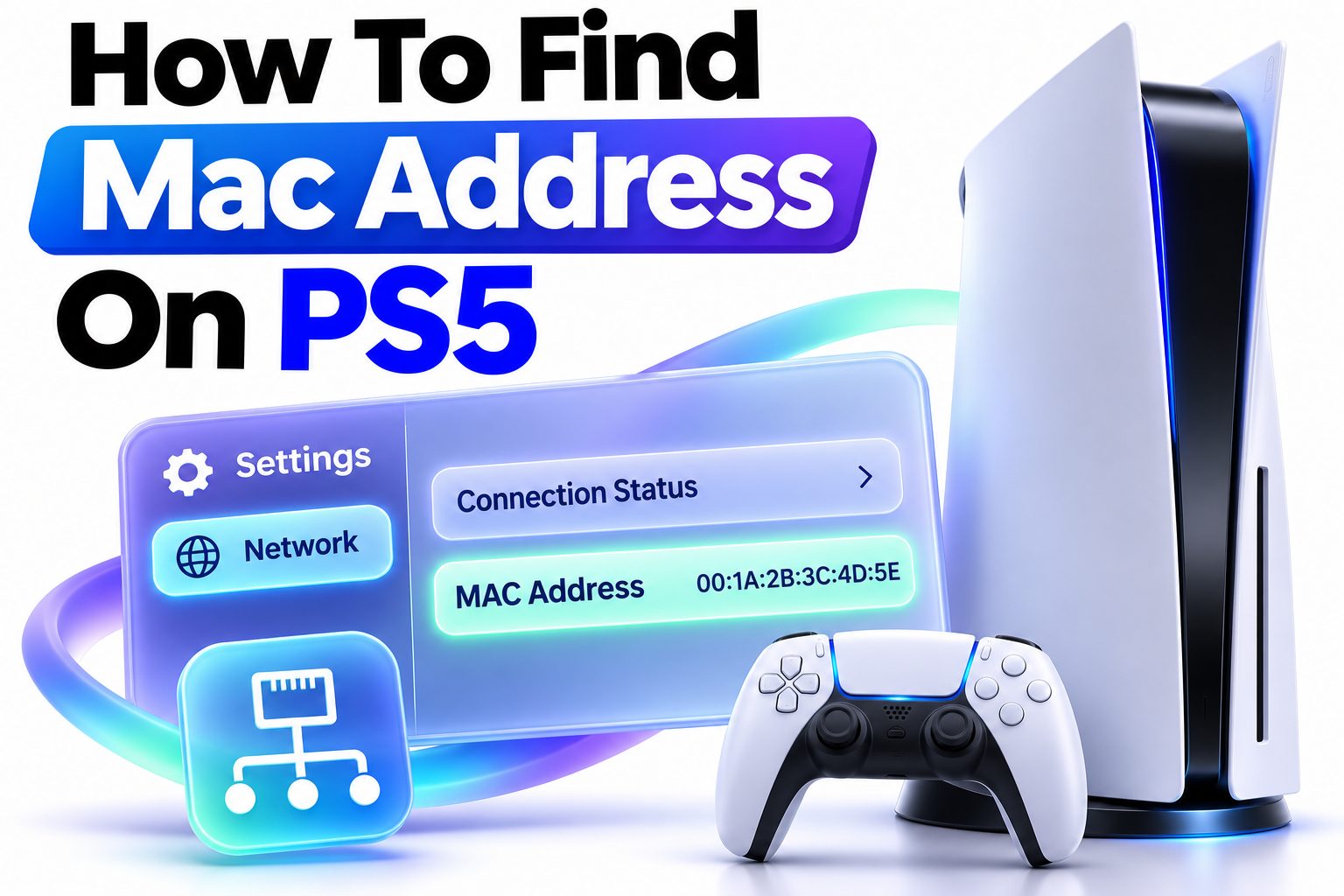
Finding your PlayStation 5’s MAC address is usually quick, but it can feel confusing when you are setting up a new router, creating a guest-network rule, troubleshooting a connection, or registering the console on a managed network. The good news is that the PS5 displays its network hardware addresses directly in Settings, and you do not need any extra app or technical tool to see them.
This guide explains how to find mac address on ps5 for both Wi-Fi and wired Ethernet connections. You will also learn why the console shows more than one address, which one to provide to a network administrator, what to do if the PS5 cannot connect to the internet, and how to avoid common copy-and-paste mistakes. By the end, you should have the exact address you need and know how to use it safely for home, school, hotel, or office network access.
What a PS5 MAC Address Does
A MAC address is a unique identifier assigned to a device’s network hardware. Your PS5 uses one MAC address for its Wi-Fi adapter and another for its wired LAN port. Routers and network administrators use these identifiers to recognize the console on a local network.
Unlike your PS5’s IP address, which can change when the router reconnects or renews its settings, the MAC address normally stays tied to that specific network adapter. That makes it useful for router reservations, access controls, and identifying the correct device in a list of connected hardware.
Where the MAC Address Appears on PS5
On a PS5, the MAC addresses are listed in the console’s system information area rather than inside the standard Wi-Fi connection screen. You can view them even when the console is offline, so internet access is not required.
The menu shows separate entries for “MAC Address (Wi-Fi)” and “MAC Address (LAN Cable).” Use the Wi-Fi address when your PS5 connects wirelessly, and use the LAN cable address when an Ethernet cable connects the console directly to your router, switch, or wall port.
1. Turn on your PS5 and sign in to any user profile.
2. Select the gear-shaped Settings icon in the top-right corner of the home screen.
3. Open System.
4. Select System Software.
5. Open Console Information.
6. Scroll until you see MAC Address (Wi-Fi) and MAC Address (LAN Cable).
7. Write down or photograph the address that matches your connection type.
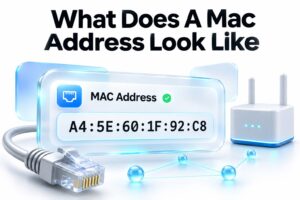
A PS5 MAC address is typically displayed as six pairs of letters and numbers separated by colons, such as `A1:B2:C3:D4:E5:F6`.
Choosing Between Wi-Fi and LAN Cable Addresses
The correct address depends on the network connection your PS5 is using right now. A wireless connection uses the Wi-Fi MAC address, while a physical Ethernet connection uses the LAN cable MAC address. These are not interchangeable for router rules or network registration.
If you are unsure which connection is active, go to Settings > Network > Connection Status > View Connection Status. This screen shows whether the console is connected through Wi-Fi or a LAN cable, along with details such as its current IP address and network name.
Situations That Require the PS5 MAC Address
Most home users never need to look up this information until a router setting or restricted network requests it. The address itself does not improve internet speed, but it lets a router apply rules to the correct console instead of another device in your home.
Common reasons to provide or use the address include:
- Registering a PS5 on a school, apartment, hotel, dormitory, or workplace network
- Setting up MAC address filtering on a router
- Creating a reserved local IP address for the console
- Identifying the PS5 among devices connected to your home network
- Assigning parental controls or internet schedules through the router
- Troubleshooting a network that blocks unknown devices
- Creating a stable setup for remote play or port-forwarding rules
Finding the Address Without an Internet Connection
You do not need to be signed in to PlayStation Network or connected to a router to view the MAC address. The value is stored in the PS5’s hardware information, so it remains available during an outage, after a router reset, or while setting up the console in a new location.
This is particularly helpful when a network administrator asks you to submit your device details before granting access. Open Console Information as described above, then send them the appropriate Wi-Fi or LAN cable address. Avoid guessing based on an address shown for a different device.
Checking the Active Connection Type First
Before submitting a MAC address, confirm whether you will use Wi-Fi or Ethernet at that location. A common problem occurs when someone registers the Wi-Fi address, then plugs the PS5 into a wired port. The network sees that wired connection as a different device.
To check the active method, open Settings > Network > Connection Status > View Connection Status. Look for the connection type and the network name. If you plan to switch from Wi-Fi to Ethernet later, consider registering both addresses with the network administrator when their policy allows it.
| Connection method | MAC address to use | Best for |
|—|—|—|
| Wi-Fi | MAC Address (Wi-Fi) | Wireless home networks, hotel Wi-Fi, rooms without Ethernet |
| Ethernet cable | MAC Address (LAN Cable) | Stable gaming setups, direct router connections, managed wired networks |
| Switching between both | Register both when permitted | Flexible setups where the console may move between Wi-Fi and wired access |
Entering the Address in Router Settings
Many routers have a page for connected devices, DHCP reservations, parental controls, or MAC filtering. The exact labels differ by router manufacturer, but the PS5 MAC address works the same way in each case. Enter it exactly as shown on the console.
For a DHCP reservation, you usually select the PS5 from the router’s device list and assign it a consistent local IP address. This can make advanced network rules easier to manage because the console receives the same local address whenever it connects.
Creating a Reserved IP Address
A reserved IP address is not the same as a static IP address manually entered on the console. The router keeps control of the settings and simply gives the PS5 the same local address whenever it joins the network. This is generally the simpler and safer choice for most homes.
Find your router’s DHCP reservation section, choose the PS5 by name or MAC address, and assign an unused address within your network’s allowed range. Restarting the PS5 or reconnecting its network connection may be necessary before the change appears.
Using MAC Filtering Carefully
MAC filtering lets a router allow or block devices based on their MAC addresses. It can be useful for a tightly controlled household network, but it should not be treated as a strong security measure. MAC addresses can be observed and imitated by determined attackers.
If you enable filtering, add the correct PS5 address before turning the rule on. Otherwise, you may accidentally block your own console. Keep a second device connected to the router’s management page so you can reverse a mistaken setting.
Copying the Address Without Errors
MAC addresses are easy to misread because certain characters look similar, particularly the number zero and the letter O. The PS5 normally uses colons between each pair of characters, but some router forms automatically add the separators for you.
Use a clear photo of the Console Information screen if you need to type the address somewhere else. Check all six pairs before saving. One incorrect character means the router will not recognize the console, even if the rest of the address is correct.
Quick checks before you submit a PS5 MAC address:
- Confirm that you selected the Wi-Fi or LAN cable version correctly.
- Make sure the address has six two-character groups.
- Preserve the colons unless the network form specifically removes them.
- Do not use the PS5’s IP address in place of the MAC address.
- Recheck similar characters such as `0`, `O`, `1`, and `I`.
- Register both addresses only when you genuinely plan to use both connection methods.
Troubleshooting When the Network Still Rejects the PS5
If a network continues to reject the PS5 after you provide the MAC address, start by confirming that the administrator or router rule received the right version. Wi-Fi and Ethernet addresses are separate, and a mismatch is the most frequent cause of a registration failure.
Next, restart the console’s network connection. On PS5, go to Settings > Network > Settings, then turn Connect to the Internet off and back on. You can also restart the console and router, which forces the connection to begin again and can refresh a managed network’s device list.
The Console Connects but Cannot Access Online Features
A successful Wi-Fi connection does not always mean that PlayStation Network or game services can reach the internet. Run Test Internet Connection from the Network menu to see whether the issue is local access, DNS resolution, PlayStation Network sign-in, or NAT type.
For more detailed connection fixes, see [Internal Link: PS5 Internet Connection Troubleshooting]. A MAC address is only one part of network access; a captive portal, DNS problem, account sign-in issue, or router firewall rule can cause a separate failure.
The PS5 Does Not Appear in the Router Device List
Some routers display a generic device name rather than “PlayStation 5,” especially before the console has fully connected. Search the device list by MAC address instead of relying only on the label. You may also see the manufacturer listed as Sony.
If the PS5 is connected through a mesh system, extender, or managed switch, check the main router’s client list as well as the mesh app. Device information can take a few minutes to update after the console joins the network.
Common PS5 MAC Address Problems
Most MAC address issues come from entering the correct value in the wrong place or using the address for an inactive network adapter. The console itself does not usually need a MAC address changed, entered, or configured manually.
| Problem | Likely cause | Practical fix |
|—|—|—|
| Network registration fails | Wi-Fi address was submitted for a wired connection | Submit the LAN cable MAC address instead |
| Router cannot find the PS5 | Device name is generic or outdated | Search the router’s client list by MAC address |
| Internet works briefly, then fails | Reservation or filtering rule is incomplete | Recheck the address and restart the router |
| PS5 connects to Wi-Fi but online games fail | The issue is DNS, NAT, or service access | Run Test Internet Connection and review router settings |
| Address format is rejected | Router expects no colons or uses hyphens | Follow the form’s format instructions without changing characters |
Using a MAC Address for Better Home Network Management
For a busy household, identifying the PS5 by MAC address makes router management more predictable. You can assign it a recognizable name, reserve a local IP address, and apply scheduling or quality-of-service settings without accidentally targeting another device.
This is especially useful when several consoles, phones, and smart TVs appear in the router dashboard. Rename the device “PS5” after identifying it, then document whether it uses Wi-Fi or Ethernet. That small bit of organization saves time when you need to troubleshoot later.
Setting Internet Schedules and Parental Controls
Some routers let you pause internet access for individual devices or create times when they may connect. Selecting the PS5 by its MAC address ensures the schedule applies to the console rather than every device in the house.
Router-based controls can complement the PS5’s built-in family settings. For account-level tools and screen-time options, [Internal Link: PS5 Parental Controls Setup] can help you set boundaries that work even when the console connects to a different network.
Prioritizing Gaming Traffic
Certain routers offer Quality of Service, often shortened to QoS, which lets you prioritize selected devices or traffic types. Adding the PS5 by MAC address may help the router identify the console consistently, particularly if its local IP address changes over time.
QoS cannot create more internet bandwidth than your plan provides. Its main purpose is to prevent downloads, video calls, or streaming on other devices from overwhelming the connection during a multiplayer match or voice chat session.
Security and Privacy Considerations
A MAC address is not a password, account ID, or serial number. Sharing it with a trusted router administrator is usually normal when registering a device, but you should still avoid posting it publicly alongside personal details, console purchase information, or screenshots of your network settings.
On public Wi-Fi, a registered MAC address only identifies the network adapter that requested access. It does not give the network owner access to your PlayStation account. Still, use strong account security, enable two-step verification, and avoid entering credentials into suspicious captive portal pages.
Important habits for safer network setup:
1. Give your MAC address only to the network owner or administrator who needs it.
2. Use the Wi-Fi address only for wireless registration and the LAN cable address only for wired registration.
3. Keep your PlayStation Network password separate from any router login credentials.
4. Change the router’s default administrator password if you manage the home network.
5. Remove old device rules when you replace a router or no longer use a console.
When the MAC Address Cannot Solve the Problem
A MAC address helps a network recognize the PS5, but it cannot fix every connectivity problem. If the console is blocked by a hotel’s captive portal, the property may need to authorize the device from its own system. Some networks also do not permit game consoles at all.
Issues with NAT type, slow download speeds, PlayStation Network outages, weak Wi-Fi signals, and damaged Ethernet cables require different troubleshooting steps. Start with the PS5 network test, then isolate the issue by trying another network or connecting with a cable if possible.
Conclusion
The quickest way to locate your console’s network identifier is to open Settings > System > System Software > Console Information. From there, you can view separate entries for Wi-Fi and LAN cable connections, which matters because each adapter uses its own address. Before registering the console on a network or creating a router rule, verify how the PS5 is actually connected.
For most situations, the practical answer to how to find mac address on ps5 is simply to copy the appropriate entry from Console Information and enter it carefully in the router or network registration form. If access still fails, check for a Wi-Fi-versus-Ethernet mismatch, restart the network connection, and confirm the address format requested by the router. Keeping the console clearly labeled in your router dashboard can also make future troubleshooting, scheduling, and connection changes far easier.
Frequently Asked Questions
Where is the Wi-Fi MAC address on PS5?
Open Settings > System > System Software > Console Information. Look for MAC Address (Wi-Fi). This is the address required for wireless router settings, Wi-Fi registration pages, and most hotel or dormitory wireless networks.
Does PS5 have more than one MAC address?
Yes. The PS5 has separate MAC addresses for Wi-Fi and its LAN cable port. Use the address that matches your active connection method, because routers treat the wired and wireless adapters as separate devices.
Can I find the PS5 MAC address while offline?
Yes. The MAC address is stored in the console’s hardware information and does not require an internet connection. You can find it through Console Information even if Wi-Fi is disconnected or the router is unavailable.
Which MAC address should I register for Ethernet?
Register MAC Address (LAN Cable) when the PS5 connects through an Ethernet cable. Do not register the Wi-Fi address for a wired connection, because the network will see the LAN adapter as a different device.
Is a PS5 MAC address the same as its IP address?
No. A MAC address identifies the console’s network adapter, while an IP address identifies its current location on a network. The IP address can change, but the adapter’s MAC address generally remains the same.